OI: Pulse
A clean buy/sell layer that adapts to regime — built to avoid noisy churn. Powered by Flow Engine × Adaptive Buffer (Blend).
Pulse is an invite-only buy/sell indicator powered by proprietary, closed-source engines. It blends flow/participation context with an adaptive buffer to produce clear regime tinting and flip markers — designed to stay usable over time, without relying on public, copy-paste templates.
Built for readable states and repeatable workflows — not indicator overload.
Designed to improve timing and decision quality while keeping the chart clean.
Sensible controls grouped logically — start with defaults, then tune for your market and session habits.
Access is managed via originalindicators.com — purchase, submit your TradingView username, and you’ll be added to the invite-only list.
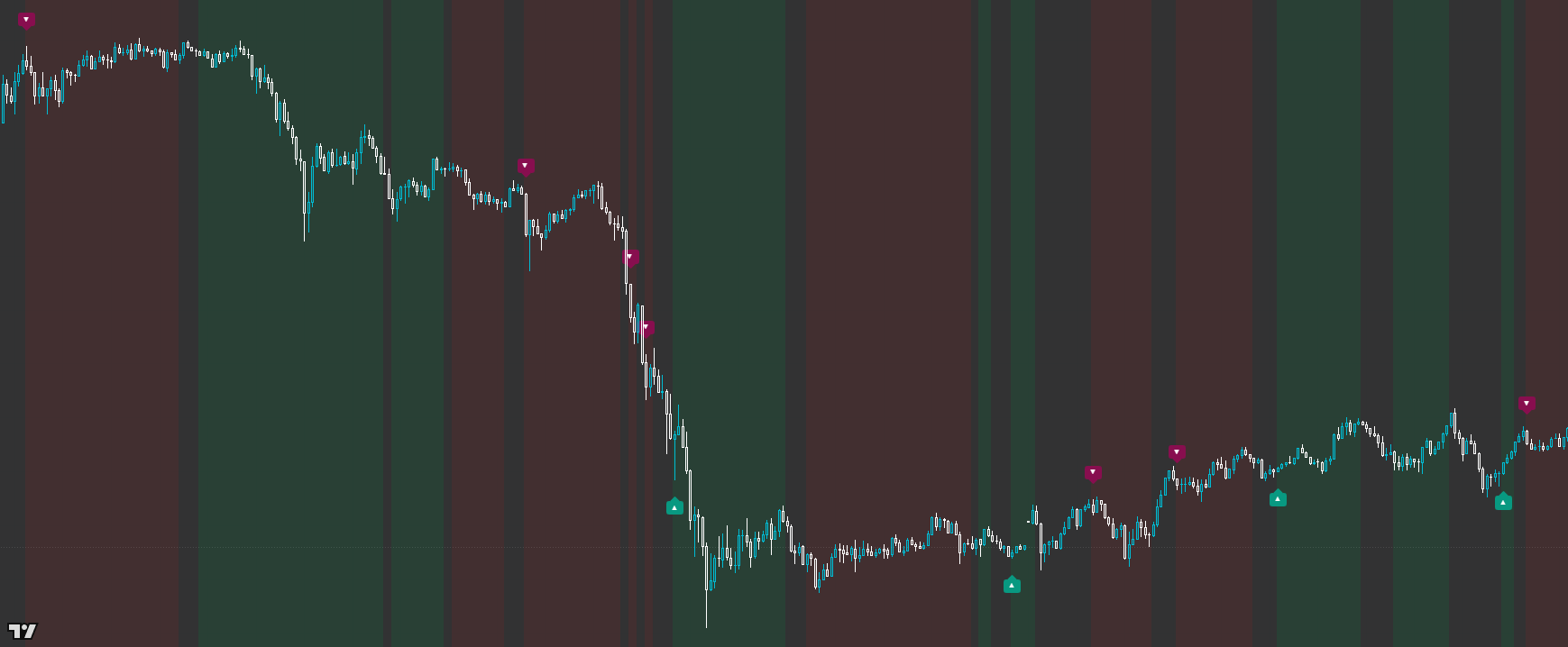
Background tint that represents the current regime state (Up / Down / Neutral)
Up markers below price when Pulse flips into an Up regime
Down markers above price when Pulse flips into a Down regime
Cleaner chart behaviour in chop via neutral handling and signal spacing
Step 1 — Start with the background tint: only look for longs in Up tint, shorts in Down tint.
Step 2 — Treat flip markers as ‘permission to focus’, not instant entries. Let price confirm with your structure rule (break + retest, pullback, etc.).
Step 3 — In strong legs, use the regime as a hold filter: stay with the tint until the state changes or your invalidation is hit.
Step 4 — In choppy conditions, downshift: increase spacing, require direction candle, or accept Neutral as a ‘no-trade’ state.
Step 5 — Review per-session: Pulse is most effective when you consistently trade the same sessions/timeframes.
Best for
- Traders who want clean, readable buy/sell moments without chart clutter
- Session trading where regime context matters (trend legs + transitions)
- Using a simple ‘trade with the tint’ rule-set to reduce bad ideas
Not ideal for
- Treating every marker as an automatic entry (it’s a decision layer, not a guarantee)
- Dead/quiet conditions if you’re forcing frequency (better to filter or stand down)
- Range scalping without a separate structure plan
- Min bars between markers (reduces flip clustering in chop)
- Require direction candle (simple quality gate on flips)
- Background tint on/off + opacity (keep it readable on your theme)
- Neutral / sensitivity controls (if you want fewer regime changes)
Avoid over-tuning early
Start with defaults, learn the states, then tune for your main market and session habits. The edge comes from consistent execution, not constant parameter chasing.
Is Pulse repainting?
Pulse is designed to behave as a real-time decision layer. Like any regime/bias tool, the current state can evolve as new candles form — but the intent is clean, stable behaviour rather than ‘perfect hindsight’ signals.
How should I trade the markers?
Use them as a bias transition cue. Best practice is ‘tint first, marker second, structure confirmation third’ (then risk management).
What timeframes does it work on?
It’s built for intraday execution and works across markets/timeframes. Most users get best results by standardising on a core timeframe and trading session.
What makes it different from public buy/sell indicators?
Pulse is powered by closed-source engines that combine flow context + adaptive buffering. You get the behaviour and workflow — without a public-template recipe that’s widely arbitraged.
Works across assets and timeframes — best used as a decision layer alongside your execution model.
Get Access